How to Convert a PDF file to PDF/A
There are many programs that generate the Adobe PDF format file. Sometimes, there are variations in how it is generated that cause errors or issues when printing. Adobe has developed the PDF/A format which is an archival version of the PDF format. The PDF/A format has less variations and conforms to a standard. Many times converting a difficult PDF file to PDF/A will allow it to print correctly.
If you have a copy of Adobe Acrobat Pro, you can load the difficult PDF file and then resave it in PDF/A format. However, many do not have this software, so using an online PDF/A converter is a free solution. There are a few online converters and one such online converter is docuPub.com. Below are some illustrated steps to help convert your PDF file.
Note, SCU does not have any business relationships or vested interest in docuPub or Neevia Tech.
First, with a web browser, go to http://docupub.com.
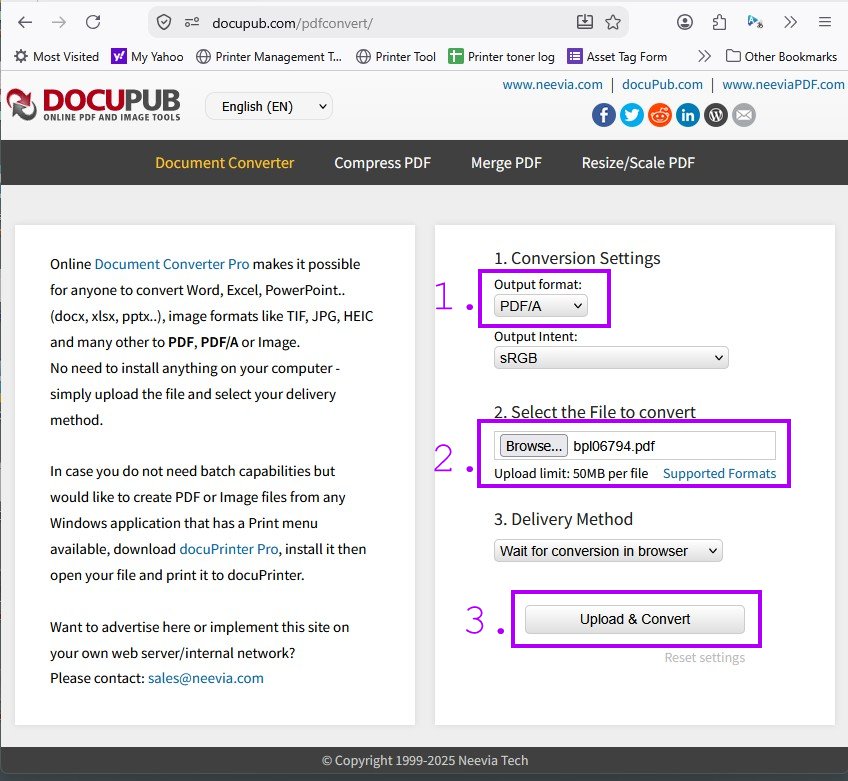
Under Output format, change this to PDF/A. Leave the Output Intent as sRGB. Next, click the Browse button and browse for the file you wish to convert to PDF/A. Note the limitation that the file size has to be less than 50 MB. Leave the Delivery Method as Wait for conversion in browser.
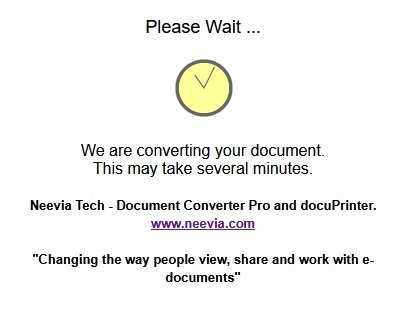
Click the Upload & Convert button to send your PDF file to be converted. You will see a Please Wait page.
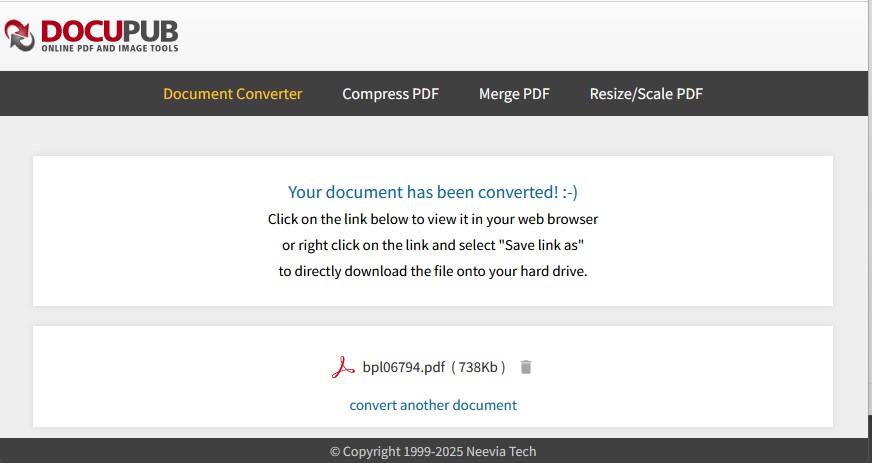
Once the conversion is complete you will see the Your document has been converted page.
Now you need to download the converted file to your computer. Right-click the converted filename and select Save link as.
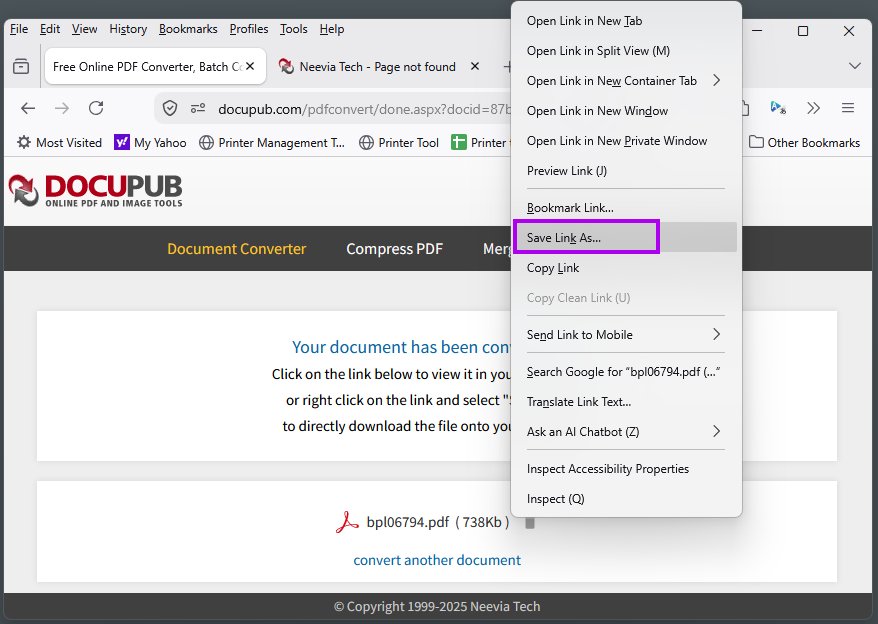
You can download and save the converted file back to your computer. You can give a slightly different name to the converted file if you do not want to overwrite the original PDF file.
You can print the converted file and it should print correctly.