Open Enrollment
November 4th
Open Enrollment BeginsNovember 20th
Open Enrollment EndsSteps for Open Enrollment
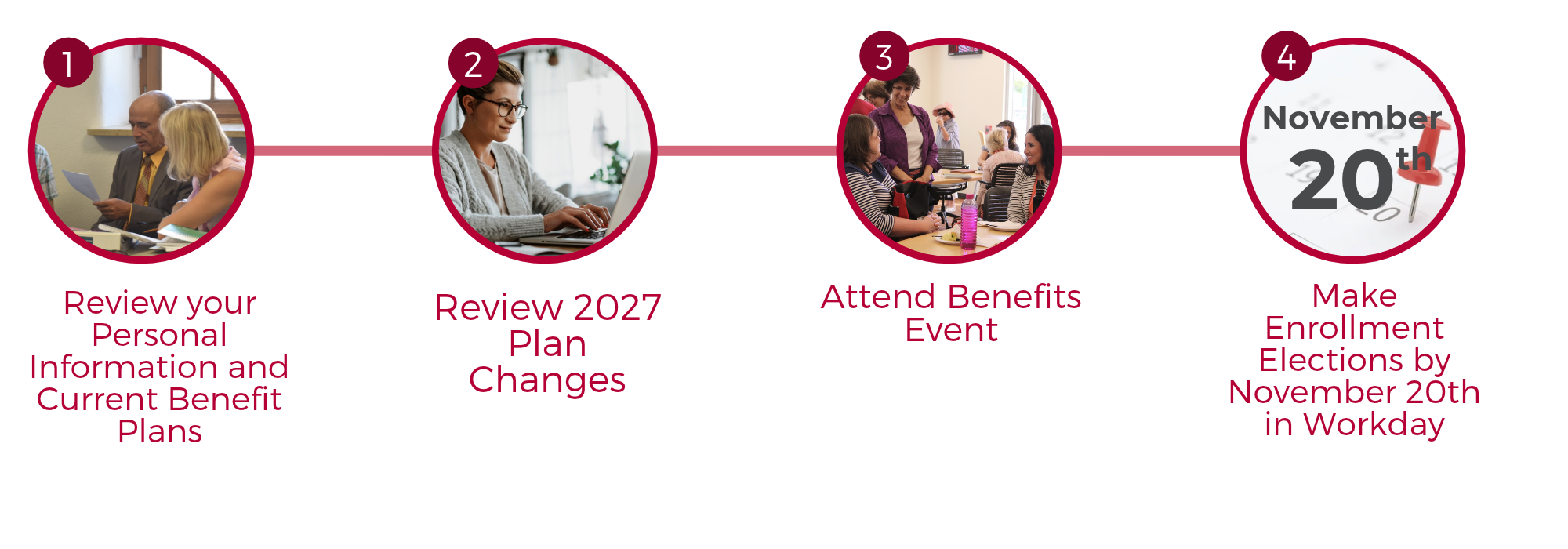
Step 1. Review your Personal Information and Current Benefit Plans
Open Enrollment is the perfect time to take inventory of your Workday records. Review and make necessary adjustments to personal information, such as address and phone number, and confirm that your designated life insurance beneficiaries are current. Look over your current 2026 benefit plan enrollments in preparation for deciding whether to make changes in 2027.
- If you need to update any personal information:
Step 1: Click on "Personal" on the top left corner and select Personal Information:

Step 2: Under "Change," select the section to update

Step 3: Within each section, click the pencil icon to change existing information or click Add to add new information
- Note: Adding New Emergency Contact information requires inputting at least one form of contact phone number or email address.
- Click Submit, then Done to save your changes

Step 2. Review 2027 Plan Information
What to know:
| Medical | Dental and Vision |
|---|---|
|
Aetna:
Aetna Medical Provider Look Up (PDF) Kaiser
|
Guardian Dental
Anthem Blue View Vision
|
|
|
| Medical FSA | Dependent Care FSA | Mass Transit FSA |
|---|---|---|
|
You can choose to contribute to a Medical Care FSA account, then be reimbursed for eligible healthcare expenses not covered by your medical, dental, and vision insurance.
|
A Dependent Care FSA can be used to pay for your child's (up to the age of 13) childcare expenses and/or care for a qualifying household member who is unable to care for themselves.
|
Mass Transit FSA can be used to cover qualified transit passes, vanpooling, payments for transportation in a commuter highway vehicle, and qualified parking costs.
|
| Health Savings Account (HSA) | Retirement | Life Insurance |
|---|---|---|
|
Those enrolled in the Aetna Choice PPO HD Health Plan can contribute to an HSA account. This allows individuals to use pre-tax dollars to help pay for qualified healthcare expenses like deductibles, copayments, and other out-of-pocket expenses.
|
Santa Clara University's retirement benefits help employees build long-term savings and a source of income during retirement. In addition to SCU's defined contributions, eligible employees may make voluntary pre or post-tax contributions. Once eligible, employees can enroll or make changes at any time. 2027 maximums have not yet been announced.
|
Employees can elect to supplement SCU's Basic Life and AD&D coverage for themselves and their dependents. Coverage may be subject to approval by SCU's life insurance carrier, Sun Life.
|
Step 3. Attend Benefits Event
Attend our annual Benefits & Wellness Expo
- November 4, 2026, 10:15 AM- 12:45 PM, Locatelli Center
Register for an upcoming Open Enrollment Informational Session by clicking on a date below:
Step 4. Make Enrollment Elections by November 20th in Workday
- Starting on November 4, eligible employees will see an Open Enrollment task in their Workday inbox.
- Open Enrollment is the one time a year when all benefits eligible employees can make changes to their benefits elections. All elections need to be submitted by November 20, 2026.
- As they go through their enrollment in Workday, employees may save their progress at any point and come back to submit their elections at a later time by selecting the "Save for Later" button. The item will remain in their Workday inbox with the saved progress. They must login by November 20 to submit the changes for the choices to be processed as part of their 2027 plan elections.
- Need to make a change after you submit? Click on the Benefits and Pay app in Workday. Under "Needs Attention" click the "Edit" button for the Benefit Event: Open Enrollment.
Guide: Navigate Open Enrollment for Desktop
Open Enrollment Steps:
Once a year, open enrollment allows you to update your benefit elections. During this period, you will receive an Open Enrollment Change task in your inbox. Review this job aid for steps on completing your open enrollment.

Add Dependents:
A dependent is someone, like a child or spouse, who receives benefits under your plan. You will need the following information to add a dependent: Full Legal Name(s), Social Security Number, Date of Birth, and Address. Only follow these steps if you are adding a dependent that is not in Workday yet. If your dependent already has a dependent profile in Workday, please skip ahead to Select Your Benefits.
From the Benefit & Pay Application application:
Step 1: Click on the heart & shield icon. Click "Dependents."

Step 2: Click on "Add."
Step 3: Click on the pencil icon  or click in the field to modify. Asterisks denote required fields. Under "Effective Date & Reason" enter today's date as the effective date. "Reason" select "Add Dependent" then "Other/Open Enrollment"


Step 4: Click the Add Button to add new information.
Step 5: Drop or Select Files to upload the required document (Affidavits of Marriage, Domestic Partner, or Eligible Dependent).
Step 6: Select a Category: Benefits
Step 7: Click Submit.

Step 8: Repeat steps 1-7 if you are adding more than 1 dependent.
Select your Benefits
From your Home page:
Step 1: Click the Inbox  icon.
icon.
Step 2: Click the Open Enrollment Change task.
Step 3: Click Let's Get Started.
Step 4: Click "Manage" to update each plan type election. Click "Enroll" to enroll in a new benefit plan.

Step 5: Choose Select or Waive for each Medical election. Your current elections are the default.

Step 6: Modify your coverage, if needed. When you select one plan, all other plans will automatically be waived.
Step 7: Click Confirm and Continue.

Note: Any dependents that you are covering in 2025, will be listed as dependent for 2026 as long as no changes are made and the dependent continues to meet eligibility rules.
Select/Modify Dependents (If any dependent profiles are listed in Workday)
After clicking Confirm and Continue in the previous step:
Step 1: If a dependent already exists, Workday selects them automatically.
Step 2: Select the checkbox next to your dependent's name. This will indicate you wish to enroll them in this plan for 2027 plan year.

Step 3: Click Save.
Step 4: Repeat for Dental and Vision benefits if you plan to modify the elections.
Enrolling or modifying Flexible Spending Accounts or Health Savings Accounts

Step 1: Click "Enroll" to enroll in the FSA(s) plan for 2027. Reminder: You must enroll in the FSA(s) plan each year to participate, enrollment will NOT default from past years.

Step 2: Select or Waive. Your current 2026 elections will NOT be set as defaults. Click Confirm and Continue.

Step 3: Fill in the Per Paycheck Amount or Annual Amount. Be mindful of the minimum and maximum annual amounts.

Step 4: Click Save.
Step 5: If you wish to modify or enroll in any other Flexible Spending or Health Savings Account, repeat steps 1-4 in this section.
Enrolling or modifying Life Insurance

Step 1: Click Manage to update your spending account elections. Click Enroll to enroll in a new benefit plan.

Step 2: Select or Waive Life Insurance Plans. Your current elections are set as default. Click Confirm and Continue.

Step 3: Select Coverage from the drop-down menu.
Step 4: At this point, you can also add beneficiaries. Click Add Icon.
Step 5: Click the Prompt Icon and select Beneficiary Person(s) or Trust to see the list of Beneficiaries available.
Step 6: Click the Name of the person you want to assign.
Step 7: Enter the percentage amount.
Step 8: To add more than one repeat steps 4-6.
Step 9: When done, click Submit.

Complete Your Enrollment:
Once you have made all your benefit elections, please make sure to take the following step to finalize the benefit event.
Step 1: Review all elections made by skimming the Benefit Event Page

Step 2: Click Review and Sign

Step 3: Review the Summary Page to ensure all your desired elections were made.


Step 4: Scroll down to review any Messages and Total Benefits Cost

Step 5: Check off the I Accept box to provide an electronic signature confirming your changes and click Submit.

Step 6: Click Done to complete the task. Optionally, click the View 2026 Benefits Statement button to view the benefits statement.

Step 7: Click Print to generate a PDF version for your records.

Reviewing/Modifying Elections Once Submitted
Note: This can only be done prior to the closing of Open Enrollment on November 20
Step 1: Go to the Benefits and Pay App in the Menu

Step 2: In the Overview Page click Edit in the Benefit Event: Open Enrollment

Step 3: Click Let’s Get Started and follow the Select Benefits section on Page 1.



2027 Benefits Information Guide (Coming Soon)

ALEX: Interactive Benefits Decision Tool (Coming Soon)
ALEX by Jellyvision is an interactive learning tool. ALEX uses audio and dynamic visual images to explain our benefits so you can select the plans that best suit your needs

Benefit Vendors/Providers Contact Information
- Aetna Member Services: (877)204-9186 (Group #: 237642)
- Guardian Dental Member Services: (800)541-7846 (Group #: 00056564)
- Kaiser Member Services: (800)464-4000 (Group #: 979)
- Anthem Blue View Vision: (866)723-0515 (Group #: 175028)
- Health Advocate Help Find a Doctor: (866)695-8622
- Health Equity Member Services: (877)857-6810
- WEX Member Services: (866)451-3399
If you still have further questions, please contact scu-benefits@scu.edu.